

Using AI with 0x
0x Docs includes built-in AI integrations, 0x skills, and an official MCP server so you can work with up-to-date documentation directly inside your AI tools and editor.
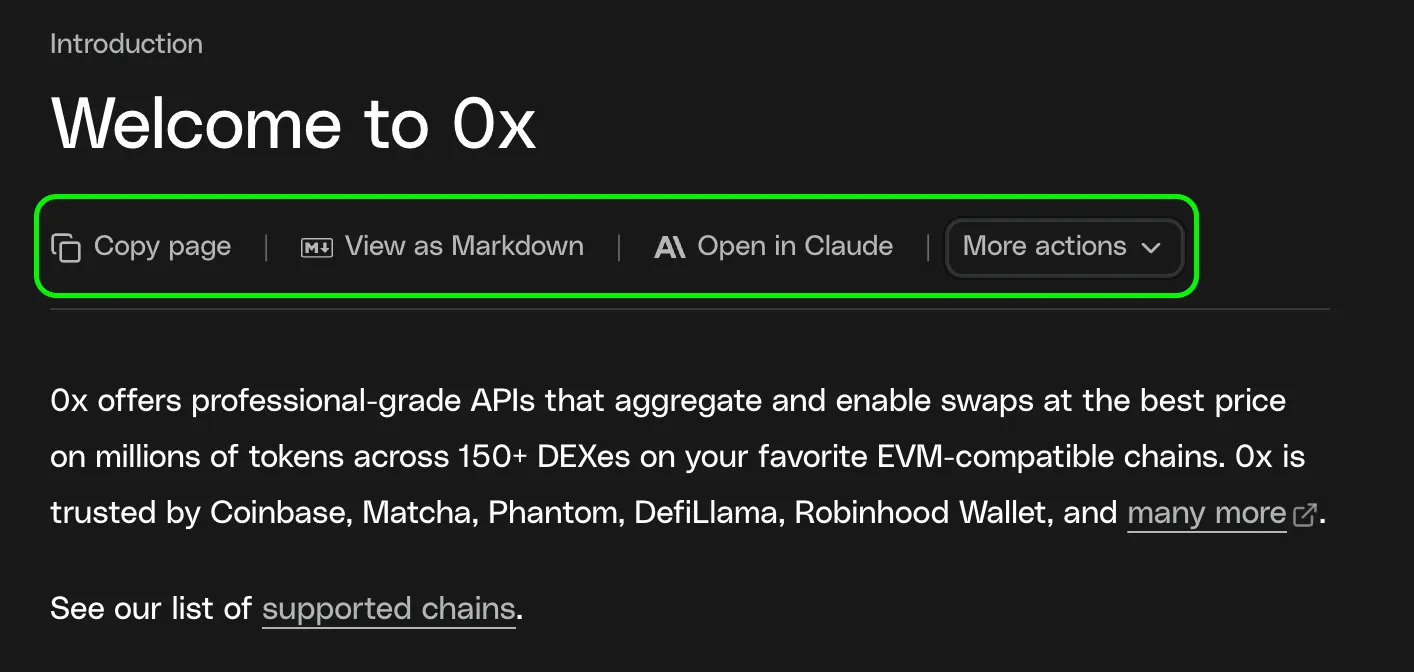
See the options available from the page actions menu on any documentation page.
Get started
Available Options
Below is a list of all available options, what they do, and when to use them.
Install Agent Skills
Give your AI coding agent built-in knowledge of the 0x API — no manual prompting or copy-pasting docs required.
Once installed, your agent understands the full 0x Swap API surface: swap flows, gasless transactions, authentication, error handling, and chain-specific details. Works with Claude Code, Cursor, GitHub Copilot, and other agents that support the Agent Skills specification.
→ See the full setup guide: 0x Agent Skills
Agent Skills are the recommended starting point if you’re actively building a swap integration in your editor.
Connect via MCP
For the best AI development experience, connect your editor or AI assistant to the 0x MCP Server.
MCP gives AI tools live, searchable access to 0x documentation — no copy-pasting required.
→ Follow the full setup guide: Connect to the 0x MCP Server
If you’re building in an IDE or working on a multi-step integration, MCP is the recommended approach.
Trade from the terminal with the 0x CLI
The 0x CLI is a single binary, 0x, that wraps the 0x Swap, Gasless, Solana, and Cross-Chain APIs. It’s built to be driven by both humans and AI agents: every command is non-interactive-safe and emits a machine-readable JSON envelope with stable exit codes.
→ See the full guide: 0x CLI
Use the CLI when you want an agent to execute trades as a tool, rather than write API client code itself.
Copy Page
Copies the page in a format optimized for AI tools.
- Preserves structure and code blocks
- Removes UI and navigation noise
When to use
Paste into any LLM to ask questions or generate code using the current page as context.
How to use
Select Copy page, then paste into your AI tool.
View as Markdown
Shows the raw Markdown source of the page.
When to use
Inspect, edit, or selectively share content before sending it to an AI tool.
How to use
Select View as Markdown, then copy what you need.
Ask AI
Ask questions about the current page directly in the docs.
When to use
Get quick explanations without leaving the documentation site.
How to use
Select Ask AI and enter your question.
Open in ChatGPT
Opens the page in ChatGPT with context included.
When to use
Quick Q&A or code generation based on a single page.
How to use
Select Open in ChatGPT to continue in ChatGPT.
Open in Claude
Opens the page in Claude with full context.
When to use
Deeper analysis or longer-form reasoning about the page.
How to use
Select Open in Claude to continue in Claude.