
Build a Token Swap App (Permit2)
Build a Token Swap App (Permit2)

Build a Token Swap App (Permit2)
⚠️ The Permit2 flow is intended for advanced integrators only.
If you’re new to 0x Swap API or want to avoid the double-signature UX, consider using AllowanceHolder instead.
This guide walks through a Next.js demo app that demonstrates a full token swap flow using Permit2, a contract designed for advanced integrators who are comfortable handling EIP-712 signatures and advanced token approvals.
This guide is intended for advanced integrators only. If you are new to Swap API or want to avoid the double-signature flow, we recommend using the Swap API AllowanceHolder flow.
Code for the demo app used in this tutorial: https://github.com/0xProject/0x-examples/tree/main/swap-v2-permit2-next-app
This app demonstrates principles used in production swapping apps such as Matcha.xyz:
/swap/permit2/price/swap/permit2/quote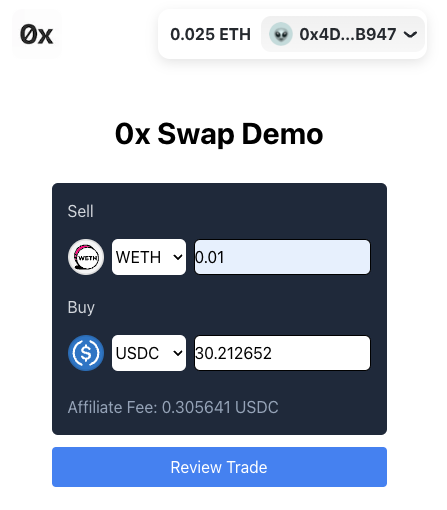
Video tutorial version here:
You should be familiar with:
This demo uses Base, but works on all supported chains.
To build our swap app, we’ll focus on:
These components are transferable to almost any token swapping app being built.
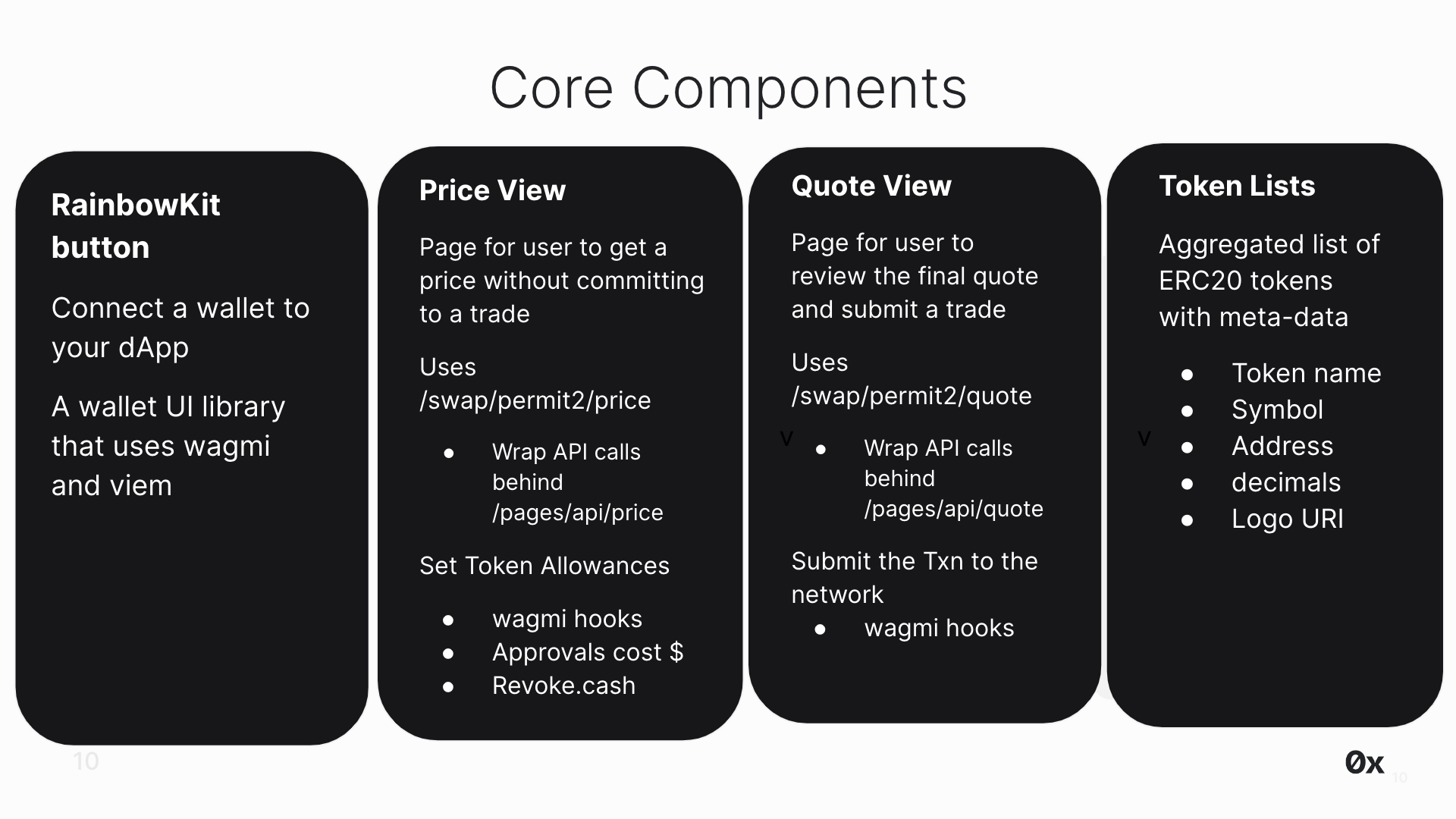
RainbowKit is a React library that makes it easy to add wallet connection to your app. We are using their Next.js App Router example in our app.
Check out their installation instructions to understand the configurations. You can configure your desired chains and generate the required connectors.
projectId in providers.tsxRainbowKit relies on WalletConnect. Obtain a free projectId from WalletConnect Cloud and replace the key in the .env file.
PriceView displays indicative pricing using/swap/allowance-holder/price. Indicative pricing is for users to browse for a price without committing to a trade.
Indicative prices:
/quote calls, which should only be used when the user intends to tradeFirm quotes are fetched later in QuoteView.
Important: Read Before Using 0x API
NEVER set an allowance on the Settler contract. Doing so may result in unintended consequences, including potential loss of tokens or exposure to security risks. The Settler contract does not support or require token allowances for its operation. Setting an allowance on the Settler contract will lead to misuse by other parties.
ONLY set allowances on AllowanceHolder or Permit2 contracts, as indicated by the API responses.
The correct allowance target is returned in issues.allowance.spender or allowanceTarget.
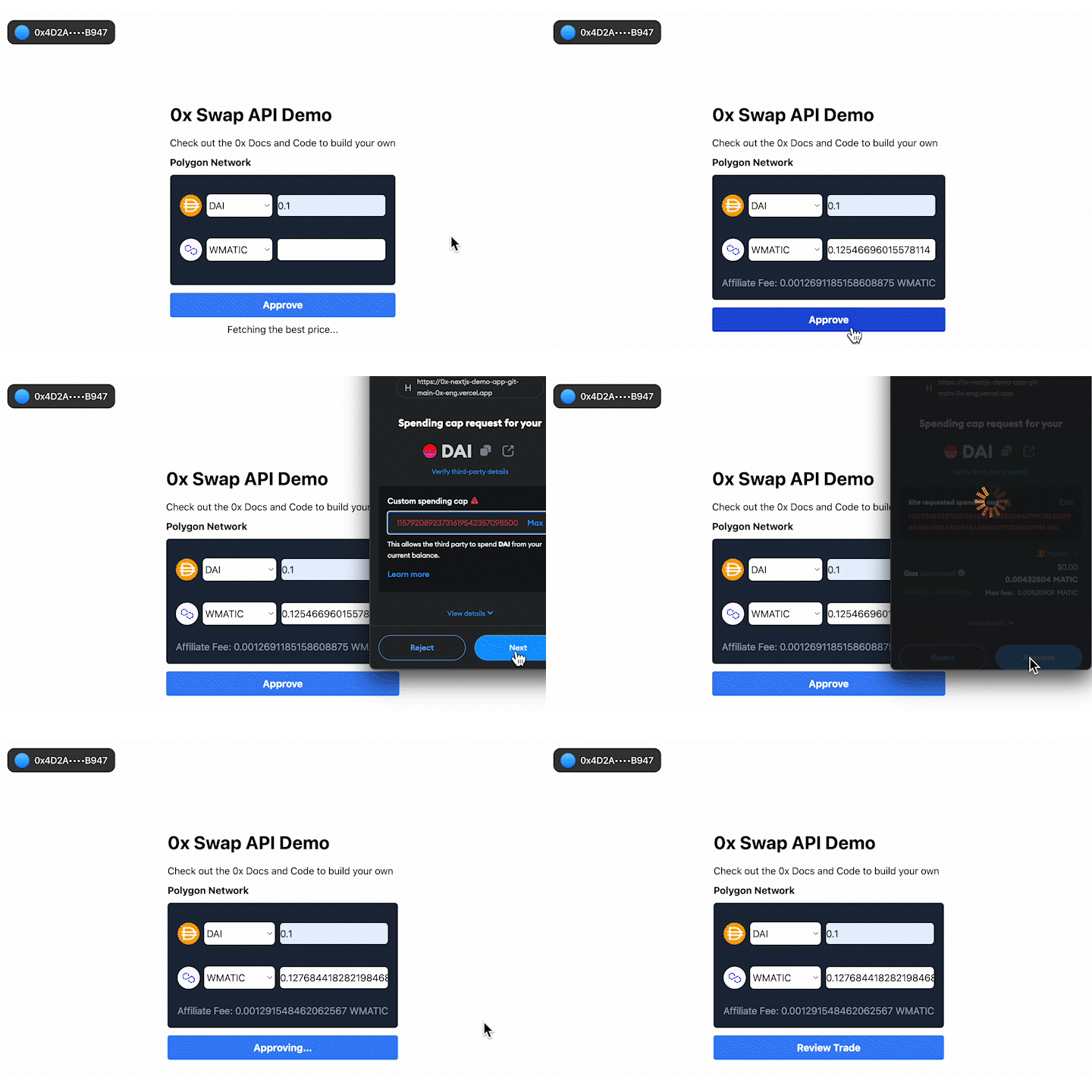
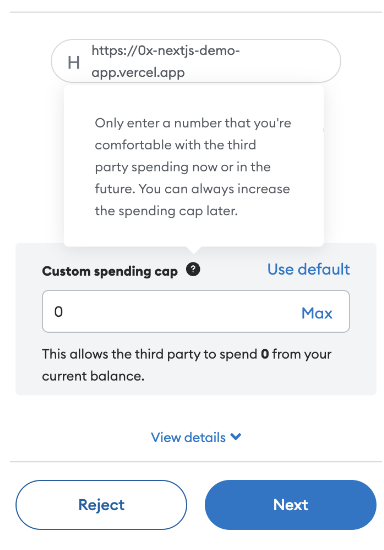
Before placing a trade on the PageView, users must set allowances on all tokens involved. A token allowance lets a third party move funds on your behalf. Essentially, you permit them to move your tokens.
In our case, we want to approve an allowance for AllowanceHolder contract to trade our ERC20 tokens for us. To do this, we need to approve a specific allowance, allowing this contract to move a certain amount of our ERC20 tokens on our behalf. Read more about token allowances.
The logic to check if the user has approved a token allowance the selected sell token is setup in /app/components/price.ts.
useReadContractuseSimulateContract, useWriteContract)useWaitForTransactionReceiptBe aware that approvals cost gas. Looking for a gasless approach? Check out Gasless API.
Need to quickly revoke an allowance while testing? To revoke an allowance, you can set the allowance to 0. This can be done programmatically or through a UI such as https://revoke.cash/ .
QuoteView displays a firm, executable quote returned from /swap/allowance-holder/quote.
Firm quotes:
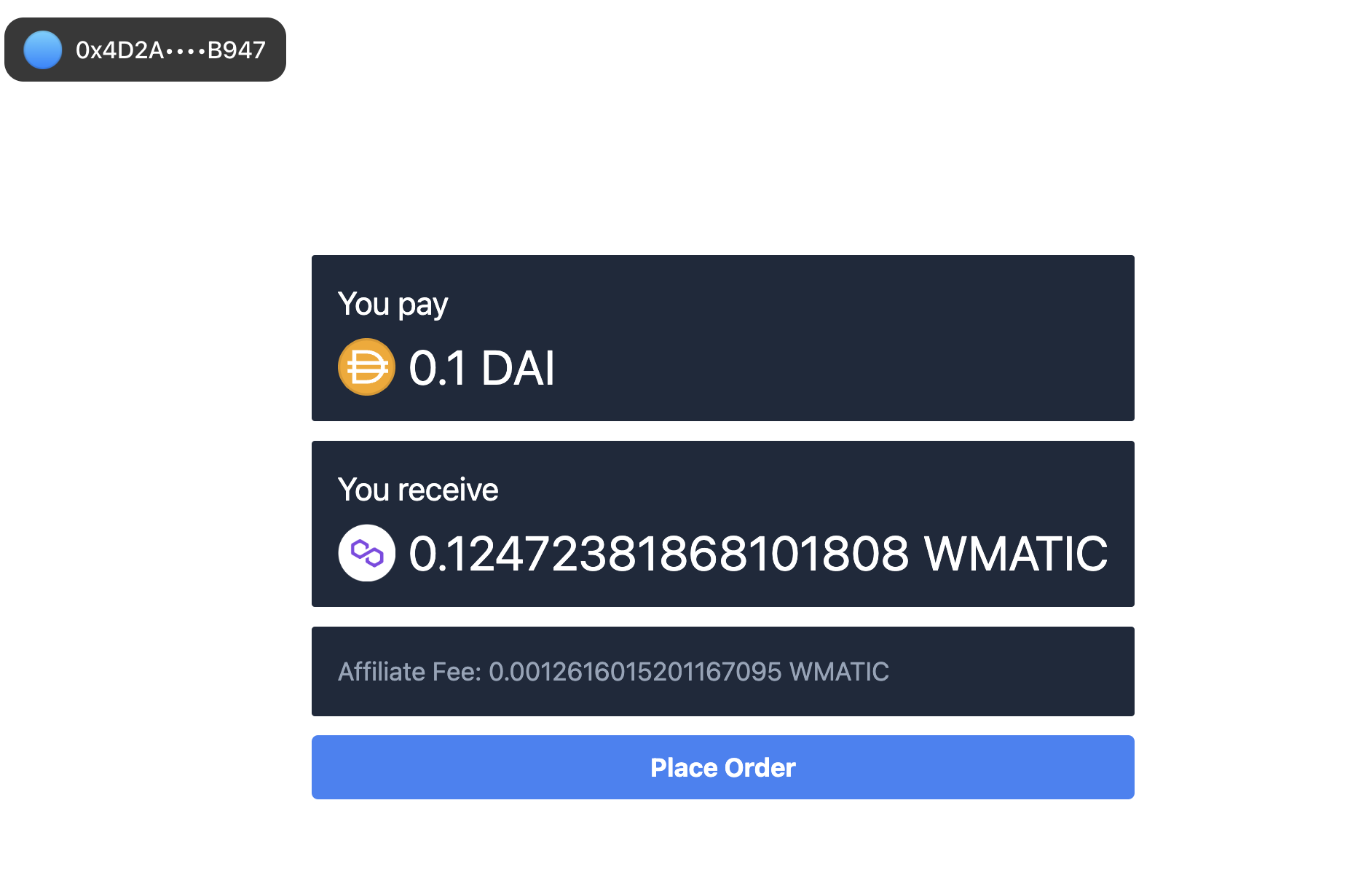
Before submitting the quote order to the blockchain, we need to sign the permit2.eip712 object from our quote response. Code here.
Next, append the signature length and signature data to transaction.data. Code here.
The format should be <sig len><sig data>, where:
<sig len>: 32-byte unsigned big-endian integer representing the length of the signature<sig data>: The actual signature dataThe last step is to submit the transaction with all the required parameters using your preferred web3 library (e.g. wagmi, viem, ethers.js, web3.js). In this example, we use wagmi’s useSendTransaction.
Pass the required params we get from the quote response to sendTransaction. Code here.
Token Lists provide curated sets of ERC20 tokens—along with their associated metadata—that applications can use when enabling asset selection (e.g., choosing tokens to swap). These lists typically include:
Developers can either consume an existing list in full or create a customized list derived from one or more established sources.
QuickNode Token API: https://www.quicknode.com/token-api
Trust Wallet Assets: https://github.com/trustwallet/assets/tree/master/blockchains
Polygon Token Assets: https://github.com/maticnetwork/polygon-token-assets/tree/main/assets/tokenAssets
TokenLists Registry: https://tokenlists.org/
CoinGecko Token List: https://tokenlists.org/token-list?url=https://tokens.coingecko.com/uniswap/all.json
In our demo, we curated a token list in /src/constants.ts. In production level apps, it’s common practice to maintain a token list since some apps don’t support all available tokens.
Swap API provides two built-in ways to monetize your swap integration—available on both free and paid plan:
For implementation details and pricing considerations, see the how to monetize your app using 0x Swap API.
1 Trade surplus is available only to select integrators on a custom plan. Contact support for access.
By following the best practices outlined in this blog post, you can create a user-friendly and effective app that enables trustless token swapping on our supported chains.
You now have a fully functional swap workflow that demonstrates:
This pattern works across all supported chains..
Happy swapping!